
How to Sync WooCommerce Data to Google Sheets Without Losing Your Mind
Manually exporting WooCommerce data to Google Sheets is tedious and error-prone. Here's how to automate the process and never do it manually again.
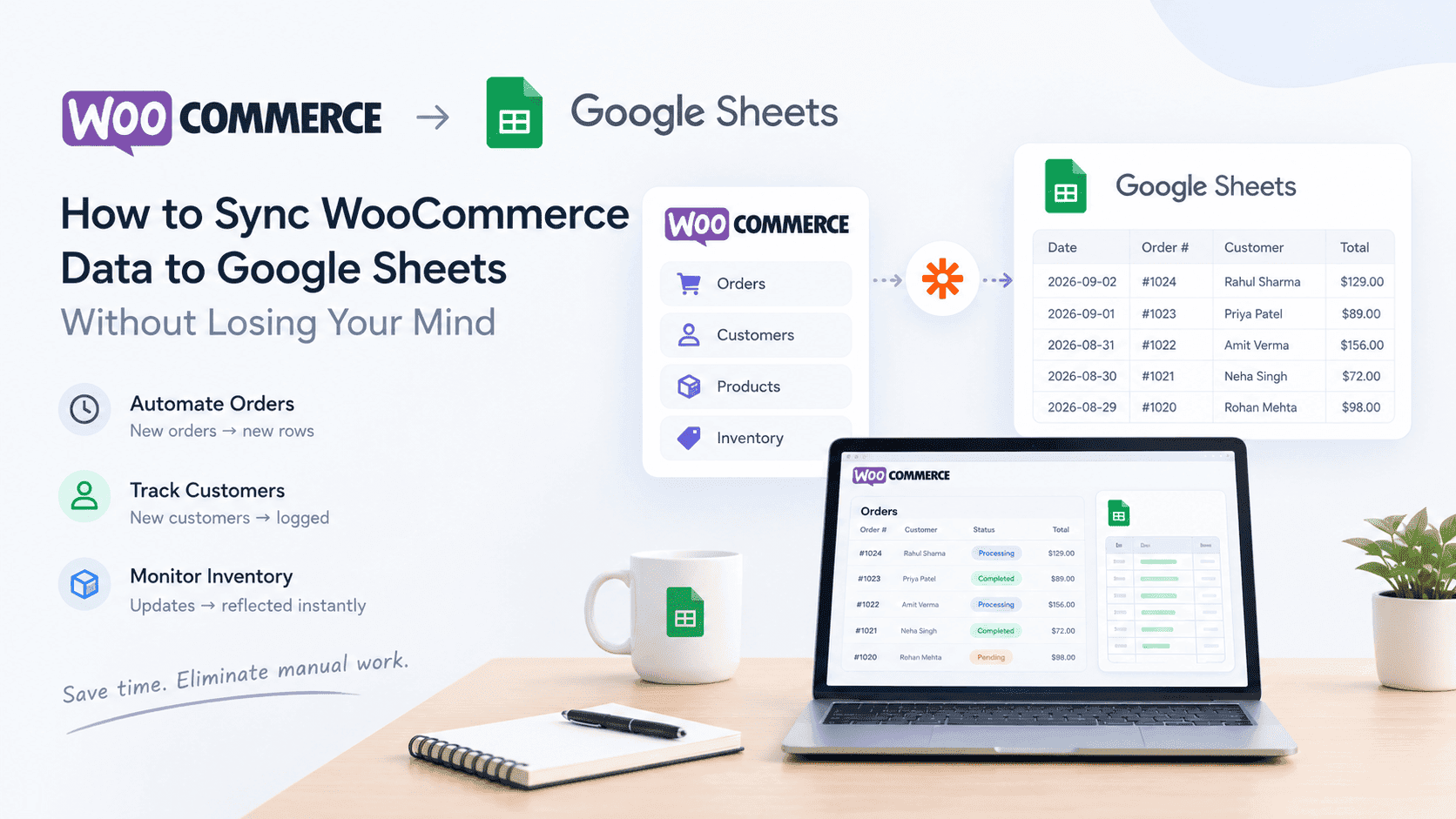
If you're still manually exporting WooCommerce data to Google Sheets, you're wasting time. Every week, someone in your business logs into WooCommerce, exports a CSV, opens Google Sheets, uploads the file, and starts formatting data.
This process takes 15-30 minutes every time. Over a year, that's 20+ hours of your team's time.
The fix is simple: automate it.
🚀 Use a tool like Zapier or Make.com to automatically send WooCommerce data to Google Sheets. When an order is placed, a new row is added. When a customer is created, it's logged. When an inventory item is updated, the sheet reflects it.
At Sutra Analytics, we build custom WooCommerce to Google Sheets sync solutions using Google Apps Script. Our solutions are more reliable, more customizable, and don't require monthly subscription fees to third-party tools.
What Data You Should Sync from WooCommerce to Google Sheets
- Orders Data: Order ID, date, customer name, email, total, status, payment method, shipping address, products purchased
- Customers Data: Customer ID, name, email, total spent, order count, registration date, last order date
- Products Data: Product ID, SKU, name, category, stock quantity, price, total sales, reviews
- Inventory Data: SKU, stock level, reorder threshold, last updated, supplier information
How Sutra Analytics Builds This:
We use Google Apps Script with WooCommerce REST API to pull data directly into Google Sheets. The script runs on a time-based trigger (every 5 minutes, hourly, or daily) and updates your sheets automatically. No third-party tools needed.
Step-by-Step Setup with Zapier (DIY Option)
- Step 1: Create a new Zap and choose WooCommerce as the trigger app
- Step 2: Select the event (New Order, New Customer, Updated Order Status)
- Step 3: Connect your WooCommerce store using the API key and secret
- Step 4: Choose Google Sheets as the action app
- Step 5: Select 'Add Row to Spreadsheet' as the action
- Step 6: Connect your Google Sheets account and select the spreadsheet
- Step 7: Map each WooCommerce field to a column in your sheet
- Step 8: Test the Zap with a sample order
- Step 9: Turn on the Zap and monitor for errors
Prefer a custom solution? We build Google Apps Script automations that give you full control over your data sync, with custom formatting, calculations, and error handling.
Alternative: Using Make.com (formerly Integromat)
Make.com offers more advanced features like filtering, formatting, and multiple actions in one scenario.
When to Use a Custom Integration Instead
- You need to sync data in real-time (sub-second latency)
- You have complex data transformations or calculations
- You need to handle thousands of orders per day
- You require HIPAA or PCI compliance
- You need to sync in both directions (WooCommerce ↔ Google Sheets)
With Sutra Analytics, you get a custom-built solution that fits your exact needs. We handle the complex parts so you don't have to.
Advanced Google Sheets Setup Tips (We Implement)
- Use named ranges for your data to make formulas easier to read
- Set up pivot tables to summarize your data automatically
- Use Google Apps Script to send email alerts based on sheet data
- Create a dashboard sheet with charts that update automatically
- Set up conditional formatting to highlight important data points
Troubleshooting Common Sync Issues
- Data not appearing: Check Zap/Scenario logs, verify WooCommerce API credentials
- Duplicate rows: Use 'Update Row' instead of 'Add Row' or set up deduplication
- Date format issues: Format the date in Google Sheets using built-in formatting
- Sync too slow: Reduce frequency or use a custom integration
Either way, the goal is the same: eliminate manual data entry. Your time is too valuable to waste on things that can be automated.
Need Custom WooCommerce to Google Sheets Sync?
Let Sutra Analytics build you a custom Google Apps Script solution that automatically syncs your WooCommerce data to Google Sheets. No third-party tools, no monthly fees, just reliable automation. Contact us today.
— Sutra Analytics Team